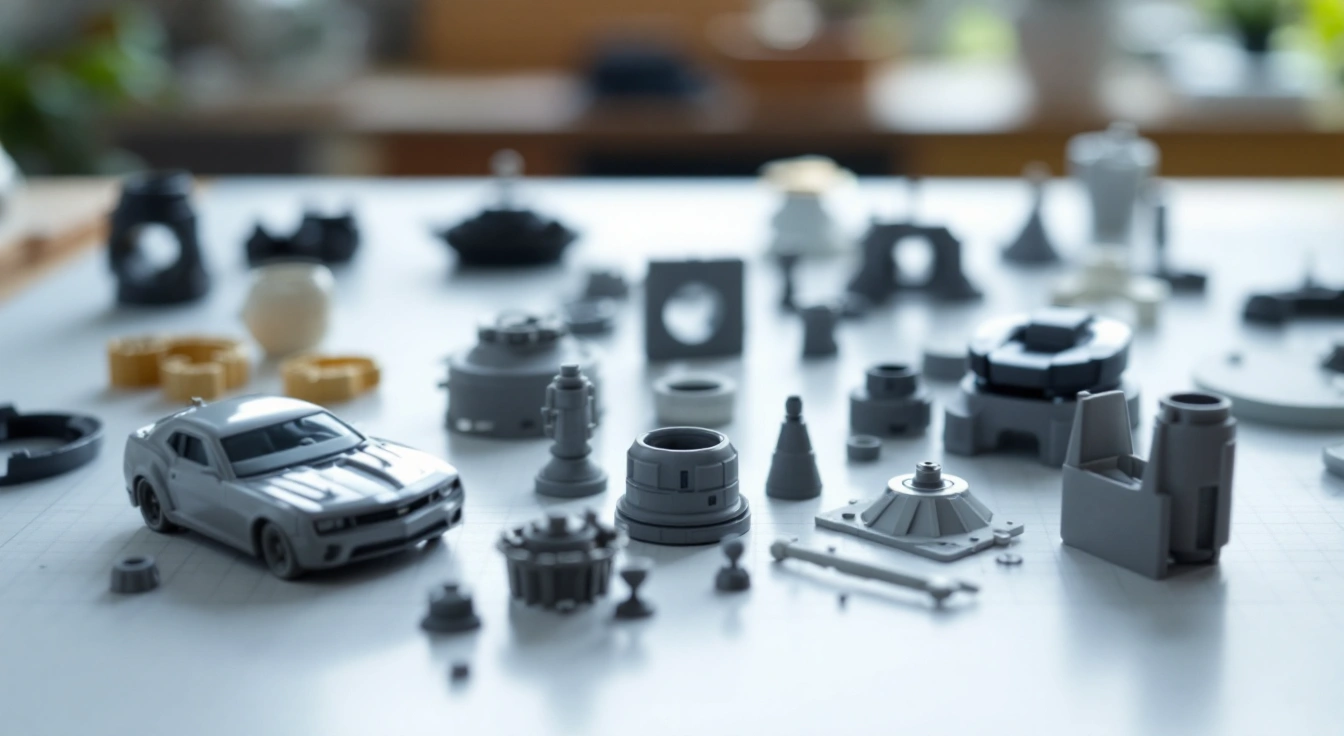
The best 3D printing software depends on what you need to do next. Making a fitted tray is a design task. Turning that model into paths for your printer is a slicing task. Design features won't resolve a wrong printer profile in the slicer. Begin with the job rather than a generic ranking.
Use dimension-driven CAD for a part you need to resize by measurements. Use a mesh workflow for freeform geometry when that fits your skills. Then use a slicer with the right printer profile and export route. Check the software license separately from the permission attached to a downloaded model. This is a task comparison based on official documentation, with no paid-software or retailer picks.
Choose the best 3D printing software by task
Write down whether you need to create geometry, alter an existing file or prepare it for the printer. Those are different jobs. A program that opens a model may not let you edit it in the way you expect. A file conversion also doesn't create permission to use someone else's design.
For a fitted organizer, dimensions matter. You may also need to edit them later. A mesh tool may suit a decorative form. With a legal ready-made model, you may need only the slicer. Don't learn a large CAD tool just to export a model that is already ready to slice.
Check your computer before choosing a workflow. Desktop releases can revise their operating-system and hardware requirements. Use the current official download page. A browser-based option has its own browser and account requirements. Don't assume a tool runs locally just because it handles a local file.
A task and output record
- Dimension-driven design: editable sketches and features, then a suitable geometry export.
- Freeform design: editable mesh or sculpture, with a check that the final geometry can be printed.
- Print preparation: the exact printer profile, a sliced layer preview and an accepted machine-file export.
- Shared project: an editable source plus a separate record of the version used for the final slice.
Choose the output before the program. If the next tool needs a particular format, check that your chosen edition can export it. Keep the native source too. A flattened export can be fine for printing while being awkward to revise later.
Option 1: FreeCAD for measured parts
FreeCAD's features page describes a parametric design workflow. That means a design can use measurements and relationships that you edit later. This can fit a tray whose width must match a desk space or a set of related parts whose dimensions need to stay linked.
You still need to learn the design method. Its features must fit together to make a valid part. An imported triangle mesh won't recreate the author's sketches. A downloaded STL is therefore not always easy to edit in the same way as your own CAD source.
Keep the FreeCAD source file for the design and make a separate export for the slicer. Check that all intended bodies are present. Compare dimensions after importing the export into the next program. A correct-looking view is not enough if the units or body selection are wrong.
A useful first check
Create a plain box or tray with a dimension you can recognize. Edit that dimension in the source, then export a new revision. Confirm the revised measurement in the slicer. This hypothetical exercise checks the handoff rather than claiming a tested print result.
If the design breaks after an edit, inspect its relationships before adding more geometry. Keep a copy of the last working source. That is easier to trace than a long chain of improvised fixes to the export. The native file and print export serve different purposes.
Blender's official license page distinguishes the program's license from the artwork you create. Blender can serve a mesh-based modeling task rather than the same dimension-driven workflow as a CAD feature tree. Choose it when that way of working suits the object and your skills.
A freeform model still needs to be suitable for printing. A surface that looks correct in a rendered image can have holes or thin sections that cause trouble in a slice. Check the actual exported geometry. Visual appearance alone doesn't establish a solid printable part.
Keep your editable source and export only the intended object or objects. Check units and scale at the handoff. If the exported model appears very small in the slicer, inspect a known measurement before enlarging it by eye. Save a new file revision when you alter the scale.
Keep downloaded assets separate
The fact that the software permits commercial artwork does not grant rights to every asset you import. A downloaded mesh can have a separate license. So can a texture or other resource used in a design. Record the source and permission attached to the actual asset.
For a plain practice print, you can avoid that question by creating simple geometry yourself. For another person's model, keep the original author record even if you make edits. A new export format does not erase the license on the source work.
Option 3: Autodesk Fusion for a qualified design workflow
Autodesk's personal-use page states limits for its personal edition. It is for qualifying home-based non-commercial use and has feature restrictions. Read the current terms before choosing it for paid work or assuming the personal edition includes every export option.
We are not quoting a subscription price here. The decision is whether the edition's permitted use and available features match your task. A tool can be available at no charge for one use while requiring another arrangement for a different use. The license should be checked before you invest in a workflow around it.
Keep your design record separate from the program account. Know which files you can export and how you will keep an editable copy. If access later changes, an exported printable mesh may preserve the object without preserving every editable feature. Plan for the kind of revision you expect to make.
Check the exact edition
A tutorial can show a feature that your edition doesn't include. Confirm the edition and date before using it as your setup plan. Test any required export with a small file before building a large project around it. Don't infer permission from a tutorial calling the tool free.
If you start to sell your work, read the current terms again. The rules you read for a hobby task may not cover that use. Check the model's rights too. A right to run an app does not give you a right to sell every design you open with it.
Option 4: A slicer for the actual printer
A slicer turns a shape into layers and paths for the machine. Keep the source design file as well. You may need it to change the shape later. PrusaSlicer's project documentation explains how to install the app and prepare a print. Choose the exact profile for the printer you will use.
UltiMaker Cura, Bambu Studio and other slicers have their own profiles and file routes. A screen may look familiar, or two apps may share source code. That does not mean you can swap their machine files. Check the exact model and nozzle before you export the job.
For your first print, the maker's documented slicer route is a useful starting point. It gives you a profile and fault guide you can trace. You can compare other slicers later if a specific task calls for it. Start with a reason for switching, not a claim that more settings are always better.
Compare the same geometry and intended output
Open the same model in each candidate workflow. Check dimensions and orientation before reading time estimates. Inspect the intended walls and fill, along with any generated print aids. If those differ, the two slices may not be attempting the same finished object.
Don't use the smaller time figure as proof of a faster machine or better tool. Keep it labeled as a slice estimate. Save the profile and file revision so the result can be inspected. Our slicer comparison explains the checks in more detail.
Best 3D printing software license checks
Read the software license for your intended use, then read the model's license. An open-source program and an openly downloadable model can still have different obligations. A paid design tool also doesn't grant rights to an imported character or branded object. Keep each record at its own source.
Check the terms for each plugin you add. The main program's license may not cover an added network service. Read how to install it and what data it sends. Use the project's own download route. A look-alike site promising extra profiles may supply a different file.
For a shared classroom or business, verify account and deployment rules before using the same arrangement as a home user. Some personal editions explicitly limit the context in which they may be used. Keep the check date with the decision. Don't turn a forum answer into the current license record.
Record what you checked
Write the official source address and the exact edition. Note the task and whether it is personal or commercial. Keep the required export format beside that record. If the intended use later differs, revisit the conditions rather than copying the old decision forward.
No model file here is offered for download and no software account is created by this page. The links lead to the projects' own documentation. Read the current release and terms there before installing. The comparison is a guide to choosing the workflow you need next.
Make a clean file handoff
Keep the native editable project as the source of the design. Export a geometry file for slicing and label its revision. After import, compare a known dimension and check that every intended body is present. Then select the exact printer and material profile.
Inspect the layer preview before sending instructions to a machine. A model view can hide thin features or invalid regions that become obvious after slicing. Check the base and overhangs. Export the format the printer's current instructions accept, not simply the format you used on another model.
The file guide explains geometry, projects and machine instructions. Use that distinction when someone shares a ready print file. A stranger's machine instructions are not a general-purpose model handoff.
A revision record that stays useful
Give the source and export related names. Keep the slice with the export revision it used. If you alter a dimension, make a new export and a new slice. That makes a later fit result traceable to its actual geometry.
Save the installed nozzle and material profile too. A working model can still fail if you run its old machine file with different hardware. Return to the geometry and slice again for the new setup. A renamed file keeps its old instructions.
Use a task you actually need, such as an open organizer whose width must fit a space. Keep it low consequence. In the design tool, check whether you can set that width and revise it without losing the rest of the object. In the slicer, check that the exported dimensions remain correct.
This is a practical evaluation you can perform, not a claim that we ran software benchmarks. Record how the handoff works on your computer and selected release. Don't generalize one task into a universal tool ranking. A freeform sculpture can call for a different workflow from a measured container.
If a tool fails the handoff, find the specific reason before replacing the whole workflow. It might be a missing export option or a wrong unit choice. It might also be a task the program doesn't suit. A clear reason lets you choose the next tool without accumulating unrelated software.
Include the time spent learning
Your own learning time matters to a hobby decision even if you don't assign it a price. A tool you already know may complete a small task sooner than a new program with more features. On another project, learning the new tool may be worthwhile. Keep that choice separate from a claim about measured software performance.
Use the cost worksheet only for the print after the design handoff. It can include known hands-on minutes if you choose. The worksheet doesn't predict how long it takes you to learn CAD or decide what your time should be worth.
Check a workflow before keeping it
Use one small task to decide whether a tool earns a place on your computer. You might design a plain tray with a slot whose width you can recognize. Keep the dimensions in the source. Export the part and check those same dimensions in the slicer.
Next, edit the slot in the source. Save a new revision and make another export. Check that the new file contains the edit and that the earlier source still opens. This tests the handoff you need, rather than a long list of features you may never use.
If the edit fails, record where it failed. The source may need repair, or you may have exported the wrong body. If the slicer shows the old width, check the file name and revision before changing printer settings. The printer cannot fix an edit that never reached the model.
For a shared task, agree which file is the source of truth. Give another person the legal model and the record of the software version used. Keep private project details out of a public download service unless you intend to share them. Read the service's actual data terms before uploading.
After the handoff works, keep only the tools that serve the task. A second program can be useful for another stage, but it should have a clear purpose. This makes later edits easier to trace. You won't have to guess which copy of the design made the finished part.
Keep the native source after printing
The finished print doesn't replace the editable file. Keep the source and its version so the next size edit starts from the design. An exported mesh may still print but can lose the way the original dimensions were linked. That matters when a series of parts must stay related.
Keep a note of the export format and the file actually sliced. If you share the project, say which file is the editable source and which is the print handoff. This avoids another person revising an old export while the newer source remains unused. Check the model's sharing permission before passing either file on.
Frequently asked questions
Do I need both CAD and a slicer?
You need a way to prepare machine instructions for your printer. You only need CAD when you plan to create or edit geometry in that workflow. A legal ready-made model can often go straight to the slicer. Keep the original file and permission record, then inspect the slice for your setup.
Does free software let me sell every print?
The software's license and the model's rights are separate. Check the terms for your use of the tool, then the permission attached to the actual design. An open-source program doesn't make an imported model commercially licensed. Keep the source and license record before selling prints.
Which program should I learn first?
Choose by the task immediately in front of you. For a ready-made first print, learn the maker's slicer route and preview checks. For a dimension-driven custom part, learn a suitable CAD workflow too. Avoid learning several unrelated programs before you have a small task that needs them.
Can I move the same project between slicers?
You can often export a shape in a shared format. A whole project may also hold settings tied to one app. Check what the next slicer can read. Select your own printer and material profile, then look through the layers again. Do not assume every setting in a saved project will work the same way in a different tool.
Verdict on the software workflow
The best 3D printing software is the tool that completes your next checked task. Keep design, slicing and model permissions distinct. Test a small file handoff before committing a larger project, and keep the native source so the next revision starts from geometry you can still edit.